

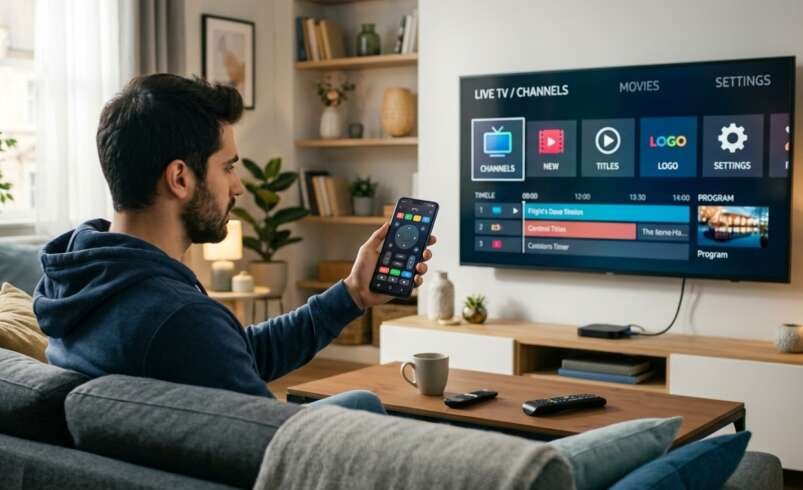

A dead remote is one of the most frustrating small problems, because it makes your whole setup feel broken. The good news is that remotes fail for a short list of reasons, and most are fixable in minutes. And if you can’t fix it, your phone can often step in as a temporary or even permanent replacement. In this guide, we’ll cover why remotes stop working, how to diagnose the problem, and how to control your Indian IPTV Box and IPTV India apps without it.
Table of Contents
- Know Your Remote Type
- Quick Checks First
- Fixes for Infrared (IR) Remotes
- Fixes for Bluetooth and RF Remotes
- When Only Some Buttons Fail
- When the Box Itself Is the Problem
- Using Your Phone Instead
- Other Replacement Options
- Keeping Your Remote Working Longer
- FAQs
Know Your Remote Type
How you troubleshoot depends on how the remote talks to the box:
- Infrared (IR): Sends a beam of light, like a classic TV remote. It needs a line of sight to the box, and no pairing
- Bluetooth: Pairs wirelessly with the box, doesn’t need a clear line of sight, and can lose its pairing
- RF (radio frequency): Uses a small USB receiver or built-in radio, with no line of sight needed, and a pairing step on some models
Many streaming remotes are Bluetooth or RF. Some combine IR for TV volume and power with Bluetooth for navigation. Your manual or the seller’s support page will tell you which type you have.
Quick Checks First
Rule out the simple causes:
- Replace the batteries, with fresh ones from a new pack. Low batteries can make a remote partly work or fail intermittently. Check they’re inserted the right way around
- Check the battery contacts for corrosion or dirt, and clean gently with a dry cloth or a cotton swab
- Test whether the box is responsive. Does the box’s front light respond, and does the screen react to anything?
- Check the box has power, and that it isn’t frozen. Unplug it for 30 seconds and plug it back in
- Use your phone’s camera to test an IR remote. Many phone cameras can show the infrared light as a faint glow when you press a button. If you see nothing, the remote is likely dead or the batteries are bad. Not every phone camera shows this, so don’t treat a blank result as proof
- Remove obstructions. Make sure nothing blocks the box’s sensor, such as a cabinet door, a decorative piece, or another device
- Try a different spot, and point the remote straight at the box from closer range
Fixes for Infrared (IR) Remotes
- Aim directly at the box’s receiver, from a short distance and without obstacles
- Check for bright interference. Strong sunlight or certain energy-saving bulbs can disrupt IR signals, so shade the box and test again
- Check an IR extender, if you use one, and make sure it’s plugged in properly
- Clean the remote’s front and the box’s sensor with a soft cloth
- Reset the box by unplugging it, waiting, and plugging it back in
- Try another IR remote, such as a universal remote programmed for the box, if the manufacturer supports it
- Check the remote for physical damage, such as liquid exposure or a cracked board
Fixes for Bluetooth and RF Remotes
- Move closer to the box, and test with nothing in between
- Re-pair the remote. Instructions vary by model. A common method is to hold a specific button or button combination until a light flashes, then follow the on-screen prompts. Check your manual for the exact steps
- Remove old pairings if the box has a Bluetooth settings menu, then pair again from scratch
- Restart the box and try pairing again
- Check for interference. Wi-Fi routers, other Bluetooth devices, microwaves, and USB 3 ports and hubs near the box can all disturb wireless signals. Move any USB receiver to a different port, or use a short extension cable
- Replace the batteries, even if they seem fine, since wireless remotes are more sensitive to weak power
- Update the box’s firmware, since pairing bugs get fixed in updates
- Check whether the remote is paired with another device. If you have two boxes, the remote may have connected to the wrong one
- Try a factory reset on the remote, if the manufacturer describes one
When Only Some Buttons Fail
Partial failure points to specific causes:
- Worn or dirty buttons: Debris or worn contacts under the rubber can stop individual buttons from registering. Clean gently around the buttons, and press a few times to see whether it clears
- Stuck buttons: A button that’s physically stuck can block the signal or cause odd behavior, such as the box waking up at random. Check for sticky or jammed keys
- Liquid damage: Spills can corrode contacts and cause erratic behavior
- Voice button problems: If only the microphone feature fails, check the remote’s microphone permission and pairing, and the box’s voice settings
- Volume and power buttons: On remotes that control the TV, these may use IR or a setup step that has been lost. Re-run the TV control setup in the box’s settings
- Learned codes lost: Universal or learning remotes may need to be reprogrammed after a battery change
When the Box Itself Is the Problem
If you’ve confirmed the remote is working but the box doesn’t respond:
- The box may be frozen. Power cycle it
- The IR receiver or Bluetooth module may be faulty, which is more common in older devices
- Software glitches can prevent input from registering. A restart or a factory reset, if you can reach the settings by another method, may help
- A failing power supply can cause erratic behavior. Try the original adapter
- A USB receiver may be missing or loose, if your remote uses one
If your box has a physical button, it may let you restart it or navigate a limited menu, which can help you reach settings. Check the device for a button, and consult the manual.
Using Your Phone Instead
Many streaming devices work with a phone app that acts as a remote:
- Manufacturer remote apps. If your Indian IPTV Box or its operating system has a companion app, download it from your phone’s official app store. It typically needs your phone and the box on the same Wi-Fi network, and pairing through an on-screen code
- Your IPTV app’s own remote features. Some IPTV apps can be controlled by another device on the same network, or include a remote-control or companion mode. Check your app’s settings
- Casting. If your IPTV app supports casting, you can start a stream from your phone, though this works differently from a remote and depends on your app and device
- Universal remote apps. Some apps send commands over Wi-Fi, and certain phones with an IR blaster can send infrared commands. Support varies widely by phone model, since many new phones no longer include an IR blaster
- Keyboard and mouse apps. Some boxes accept input from a USB or Bluetooth keyboard or mouse, and some phone apps emulate these
Basic setup (general steps):
- Connect your phone and your box to the same Wi-Fi network
- Install the official remote or companion app for your device
- Open it and follow the prompts to find and pair with your box
- Enter any code shown on the TV if the app asks for one
- Test navigation, selection, and volume
Chicken-and-egg problem: some boxes need the remote to enable network control or pair the phone in the first place. If that’s the case, a temporary replacement remote, a keyboard, or the box’s physical button, if it has one, may be needed to get started.
Phone control also depends on your Wi-Fi, so if the network is down, the phone remote won’t work either. Use only official apps from your device’s manufacturer or your provider’s recommendation, since unofficial remote apps can be unreliable or collect more data than they should.
Other Replacement Options
- A manufacturer replacement remote, the surest match for your box
- A universal remote that supports your device, which can also control the TV and soundbar
- A USB or Bluetooth keyboard or mouse, if the box supports them. A small wireless keyboard with a trackpad is handy for typing logins
- Voice control through a smart speaker, if your device supports it, though this usually controls only some functions
- HDMI-CEC from your TV remote. If your TV and box support it, the TV remote may control the box’s basic navigation. See our guide to HDMI-CEC for how this feature works and how to adjust it
Check that any replacement works with your specific model before you buy, and keep the return policy handy.
Keeping Your Remote Working Longer
- Use good-quality batteries, and replace them as a set
- Take batteries out if the remote will be unused for a long time
- Keep it away from liquids and heat
- Don’t drop it, and consider a protective cover
- Clean it occasionally with a slightly damp cloth, and dry it thoroughly
- Keep a spare or know where to find a replacement
- Install the phone remote app in advance, so you have a backup before the remote fails
- Keep the box’s firmware updated
- Don’t let pets or children treat it as a toy
FAQs
1. Why did my remote suddenly stop working?
The most common causes are dead or poorly seated batteries, a lost Bluetooth pairing, interference or an obstructed sensor, or a frozen box. Replace the batteries, power cycle the box, and re-pair the remote.
2. How do I know if my remote is IR or Bluetooth?
Check your manual or the seller’s page. IR remotes need a line of sight to the box, while Bluetooth and RF remotes work without pointing at it and usually require pairing.
3. Can I control my Indian IPTV Box with my phone?
Often, yes, through the manufacturer’s companion app or your IPTV app’s remote features, provided your phone and box are on the same network. Check what your device supports.
4. Why can’t my phone remote connect?
Common reasons include being on a different Wi-Fi network, a guest network that isolates devices, a firewall or filtering setting, or the box needing a pairing code that you can’t enter without a working remote.
5. Should I replace the remote or the box?
If the box responds to another remote, a phone app, or its own button, the box is fine, and a new remote will solve the problem. If nothing controls it, troubleshoot the box.
Get Back in Control
A dead remote is usually a quick fix, and a phone can be a handy backup. Pair a dependable IPTV India subscription with a well-cared-for Indian IPTV Box, and keep a backup control method ready so you’re never stuck. Explore our IPTV plans today and enjoy easy, hassle-free viewing.