
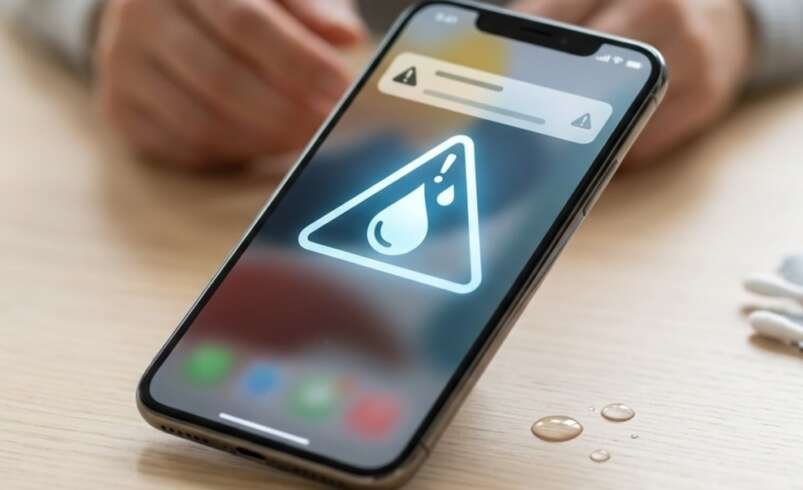

Have you ever connected your phone to a charger and noticed a “Moisture Detected” warning? This alert usually means your device has detected moisture in the charging port or cable, preventing charging to protect its components. Whether you use a Samsung or another smartphone, understanding the cause can help prevent damage. Mobile Device Techs provides professional smartphone repair solutions, including Samsung repair Douglasville and phone battery replacement Douglasville, to help keep your device working properly.
Table of Contents
- What Does the Moisture Detected Warning Mean?
- Common Causes of the Warning
- How to Fix the Moisture Detected Warning
- When Should You Seek Professional Repair?
- Frequently Asked Questions
- Call to Action
1. What Does the Moisture Detected Warning Mean?
The moisture detected warning is a safety feature found on many Samsung smartphones. It alerts you when moisture or an abnormal electrical condition is detected in the charging port. Charging while the port is wet can cause corrosion, short circuits, or charging problems.
Sometimes, the warning appears even when your phone has not been exposed to water. Humidity, dust, debris, or a temporary software issue may also contribute to the problem.
2. Common Causes of the Warning
Several factors can trigger this alert:
- Water exposure: Rain, spills, or accidental drops in water can introduce moisture into the charging port.
- High humidity: Moisture in the air may affect your phone, especially in humid environments.
- Dust and debris: Dirt inside the port can interfere with proper connections.
- Damaged charging cable: A faulty or wet cable may trigger charging problems.
- Software glitches: Temporary system errors can sometimes cause a persistent warning.
- Corrosion or port damage: Previous liquid exposure may damage charging components and cause recurring alerts.
Identifying the likely cause helps you choose the safest solution.
3. How to Fix the Moisture Detected Warning
Try these steps to resolve the issue safely.
Step 1: Disconnect the Charger
Immediately unplug the charging cable if the warning appears. Avoid repeatedly connecting the charger while the port may be wet.
Step 2: Dry Your Phone Naturally
Turn off your device if you suspect liquid exposure. Hold it with the charging port facing downward and gently tap it against your hand to help remove excess moisture. Leave it in a dry, well-ventilated area.
Drying may take several hours or longer, depending on the amount of moisture.
Avoid using a hair dryer, inserting objects into the port, or placing your phone in rice. These methods can cause additional damage or leave debris inside the device.
Step 3: Check the Charging Cable
Inspect the cable and connector for moisture, dirt, or visible damage. Use a completely dry, compatible cable once the phone and port are dry.
Step 4: Restart Your Phone
If the port is completely dry but the warning remains, restart your phone. A temporary software issue may be responsible.
Step 5: Check for Software Updates
Install available system updates when your phone is sufficiently charged and safe to use. Updates may resolve software-related charging issues.
Step 6: Consider Wireless Charging
If your phone supports wireless charging, you may be able to use it while the charging port dries. Only use wireless charging if the device’s exterior is dry and the manufacturer permits it.
4. When Should You Seek Professional Repair?
If the warning continues after the charging port has dried thoroughly, your phone may have a damaged port, corrosion, or a faulty moisture detection circuit.
Other warning signs include slow charging, intermittent connections, unusual heating, or a phone that no longer recognizes the charger.
Professional technicians can inspect the charging port, identify hardware problems, and recommend appropriate repairs. If your device also experiences battery-related issues, phone battery replacement Douglasville may be worth discussing with a qualified technician.
For Samsung users, Samsung repair Douglasville services can help diagnose persistent charging problems. Mobile Device Techs can be contacted to discuss available repair options and determine the appropriate next steps.
5. Frequently Asked Questions
Q1. Can I charge my phone when the moisture warning appears?
It is best to disconnect the charger and allow the port to dry completely before attempting wired charging. Ignoring the warning may damage your device.
Q2. Why does my Samsung phone show the warning when it is dry?
Humidity, debris, a damaged charging port, or a software glitch may trigger the warning even when no visible moisture is present.
Q3. How long does it take for a charging port to dry?
It may take several hours or longer. Drying time depends on the amount of moisture and the surrounding conditions.
Q4. Will restarting my phone remove the warning?
Restarting may help if the warning is caused by a temporary software issue. However, it will not fix actual moisture, corrosion, or physical damage.
Q5. Should I replace my phone battery because of this warning?
Not necessarily. The warning usually relates to the charging port or moisture detection system. A battery replacement is appropriate only if testing identifies a battery problem.
6. Call to Action
A persistent moisture detected warning should never be ignored. Taking the right precautions can help protect your phone from charging issues and costly damage.
Mobile Device Techs offers smartphone repair assistance for customers seeking Samsung repair Douglasville and phone battery replacement Douglasville. If your phone continues to display the warning after proper drying, contact Mobile Device Techs to discuss professional diagnosis and suitable repair options.
Protect your device today by addressing charging problems early and following safe troubleshooting practices.