

Decoding the Alphabet Soup of Embroidery Files
You just found the perfect design online. You download it, transfer it to your USB drive, and plug it into your Brother machine. Then nothing happens. Or worse, your machine throws an error message that makes no sense at all. Sound familiar? If you have been there, you know the frustration of dealing with embroidery file formats.
The embroidery world runs on acronyms. PES, DST, EXP, JEF, VIP, PEC. The list goes on and on. Each format serves a specific purpose, but here is the thing. Not all of them work on your Brother machine. Understanding what does and does not work saves you from wasting time, money, and your sanity. Let us clear up the confusion once and for all.
The Most Compatible Embroidery Format for Brother Machines is undoubtedly the .PES format. This format was developed specifically for Brother and Baby Lock machines. It stores all the color information, stitch data, and design details your machine needs to create beautiful embroidery. If you stick with .PES files, you will avoid most compatibility headaches.
A Quick Look at Your Brother Machine
Before we dive deeper into formats, take a moment to understand what your Brother machine actually does. These machines read digital instructions that tell the needle exactly where to go, how fast to move, and when to change colors. The embroidery file is like a detailed road map for your machine.
Every Brother machine model has slightly different capabilities. Newer models handle more file types than older ones. Some machines have built-in memory that stores designs directly. Others require external storage like USB drives. Knowing your specific model helps you understand which formats will work and which will not.
Understanding the Most Common Formats
Let me break down the formats you will encounter most often. Each has its strengths and weaknesses.
The .PES format is your best friend. It supports multiple colors and contains all the information your Brother machine needs. Color charts, stitch types, and design dimensions are all stored in this versatile format. Most designs you find online come in .PES format specifically because it works with so many machines.
The .DST format comes from the commercial embroidery world. Tajima machines popularized this format, but many Brother models read it too. .DST files contain less color information than .PES files. Your machine might ask you to assign colors manually when using .DST files. It works in a pinch but is not ideal.
The .EXP format is another commercial option, originally from Melco machines. Some newer Brother models accept .EXP files, but compatibility is not guaranteed. Stick with .PES if you have the choice.
Formats That Will Not Work on Brother Machines
Knowing what does not work is just as important as knowing what does. Some formats are simply incompatible with Brother machines.
The .JEF format belongs to Janome machines. Brother machines cannot read these files. The .VIP format is exclusive to Singer and Pfaff machines. Do not even try. The .PCD format comes from Pfaff machines and will not work on your Brother.
The .XXX format is used by Singer and some other brands. Again, not compatible with Brother machines. Always check the file extension before transferring designs to your machine.
Converting Files to the Right Format
So what happens when you find a perfect design in the wrong format? You do not give up. You convert it to something your Brother machine can read.
Plenty of software options handle file conversion. Programs like Embird, SewArt, and Wilcom let you open one format and save it as another. Some are free, some cost money. The paid options generally offer better results with fewer errors.
When converting files, pay attention to the settings. Different formats handle color information differently. You might need to reassign colors after conversion. Check your design carefully in the preview before stitching it out.
Software-Specific File Types
Here is a tricky part of compatibility. Some digitizing software creates files that only work within that software. These are not machine-ready formats.
Wilcom uses .WMF files for its workspace. Hatch has its own proprietary format. These files exist for editing purposes only. You cannot load them directly onto your Brother machine. You must export them as .PES or .DST first.
Always look for the export or save as function in your software. Choose a machine-compatible format for your final output. Keep the software-specific version for future edits.
USB Drive Compatibility Tips
Your Brother machine likely uses USB drives to transfer designs. But not every USB drive works properly.
Brother machines prefer USB drives formatted as FAT32. Most drives come formatted this way from the factory. If you have formatted your drive differently, reformat it to FAT32. Your machine will thank you.
Keep your USB drive simple. Long file names confuse some machines. Stick with short names that clearly identify your design. Avoid special characters and spaces in file names. Underscores work well instead of spaces.
Check the folder structure on your USB drive. Some Brother machines only read designs stored in the root directory. Others let you organize designs into folders. Test your machine to see what it prefers.
The Role of Design Size in Compatibility
Format compatibility matters, but so does design size. Your Brother machine has a maximum hoop size. If your design exceeds that size, the format does not matter.
Check your machine specifications for maximum embroidery area. The Brother PE800 handles 5×7 inches. The Brother SE1900 has a slightly larger field. Older models have smaller maximum sizes. Always verify your design dimensions before loading it.
Some software lets you resize designs, but be careful. Changing the size changes the stitch density. Scaling up creates gaps between stitches. Scaling down creates overly dense areas that pucker the fabric. Resizing works for small adjustments but not for major changes.
Multiple Color Files versus Single Color Files
Different formats handle color information differently. This affects how your machine processes the design.
.PES files store complete color information. Your machine knows exactly which colors to use and when to change them. The machine pauses automatically between color changes.
.DST files store color information differently. The machine might not recognize the color sequence correctly. You may need to assign colors manually for each section. This adds a step to your process but is manageable.
Single-color designs avoid this issue entirely. If your design uses only one thread color, the color data becomes irrelevant. Any compatible format works for single-color designs.
Downloading Designs Safely
The internet has millions of embroidery designs available. Not all of them are safe or legitimate.
Only download designs from reputable sources. Shady websites sometimes distribute corrupted files that damage your machine or produce terrible results. Read reviews and check forums to find trusted design providers.
Check the file format before downloading. Look for .PES format specifically for Brother machines. Some sites offer multiple format options. Choose the one that works best for you.
Be careful with free designs. Many free files come from auto-digitizing software that produces low-quality results. The stitch paths might be inefficient or the density might be wrong. Spending a few dollars on a quality design often saves you time and frustration.
Making Your Own Files
Creating your own embroidery files gives you complete control over compatibility. You decide the format, the size, and every stitch detail.
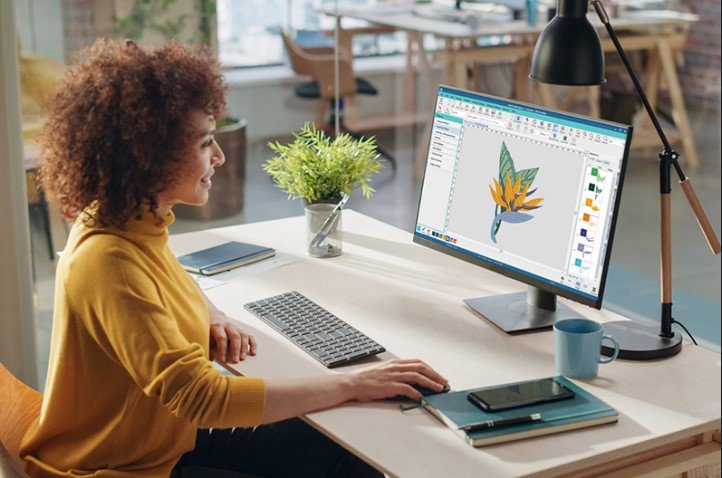
Digitizing software turns your artwork into embroidery files. You can start with a photo, a drawing, or a simple shape. The software converts your image into stitch data.
When saving your finished design, always choose .PES format. This ensures maximum compatibility with your Brother machine and most other home embroidery machines too. Keep a backup copy in your software format for future editing.
Troubleshooting Compatibility Issues
Despite your best efforts, sometimes designs just will not work. Here are some common fixes.
If your machine shows an error when loading a file, check the format first. Make sure it is .PES or .DST. If it is, try transferring it again. Sometimes the file gets corrupted during transfer.
If the design loads but stitches poorly, check the density. Too many stitches in a small area cause problems. Your digitizing software can adjust density. Reduce it slightly and try again.
If colors are wrong, manually assign them on your machine. Most Brother machines let you change colors before stitching. This bypasses any color data issues in the file.
Conclusion
Embroidery file compatibility does not have to be a mystery. Stick with .PES format and your Brother machine will handle almost anything you throw at it. This format carries all the necessary information for beautiful results. It works consistently across different Brother models and saves you from conversion headaches.
Take time to understand your specific machine too. Check your manual for supported formats and maximum design sizes. Knowing your machine’s capabilities helps you make better choices when downloading or creating designs.
Remember that good designs start with good files. Whether you download them, convert them, or create them yourself, the right format makes all the difference. Your Brother machine is built for creativity. Give it the right files and watch it work its magic.