

Managing a Scrum project involves more than assigning tasks and checking whether they are completed. Teams need to organise their Product Backlog, plan Sprints, track progress, manage blockers and review completed work. Without a shared system, these activities can become difficult to coordinate.
Jira provides features that help Scrum Teams manage these activities in one place. From creating a Product Backlog to tracking Sprint progress, it gives teams visibility into their work throughout product development.
For beginners, understanding how to use Jira for Scrum project management can make day-to-day coordination easier. This guide explains how to set up a Scrum project, manage its board and use Jira features throughout a Sprint.
Create a Scrum Project in Jira
The first step is to create a Scrum project that matches your team’s requirements.
After signing in to Jira, select the option to create a project and choose a Scrum template. Depending on your Jira version and permissions, you may see options for team-managed or company-managed projects.
A team-managed project allows a team to configure its own workflows and settings. A company-managed project offers more centralised configuration and administration.
Enter a project name, review the available settings and create the project. Once it is ready, you can start adding work items and organising the backlog.
Set Up the Product Backlog
The Product Backlog is an ordered list of everything needed to improve the product. In Jira, teams can manage this work through issues such as Epics, Stories, Tasks and Bugs, depending on their project configuration.
For example, a team developing an online shopping application may create an Epic called “User Account Management”. Under it, they can add stories such as:
- As a customer, I want to register using my email address.
- As a customer, I want to reset my password.
- As a customer, I want to update my profile details.
Each item should include a clear description and relevant acceptance criteria where appropriate.
The Product Owner is accountable for managing the Product Backlog. The team can use Jira to organise items by priority and prepare them for upcoming Sprints.
Create and Manage a Scrum Board in Jira
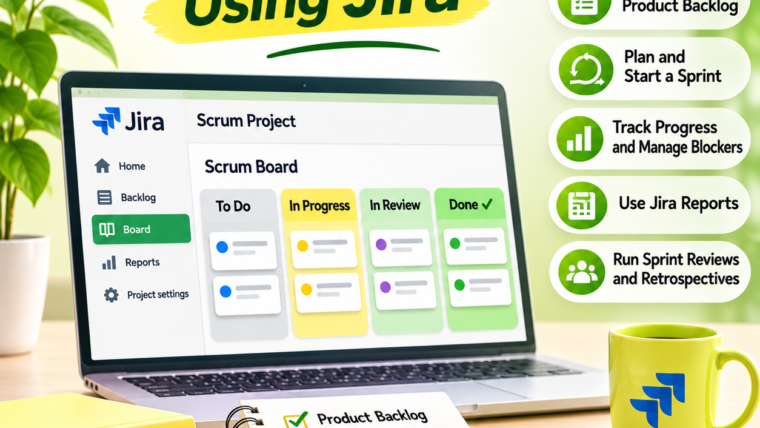
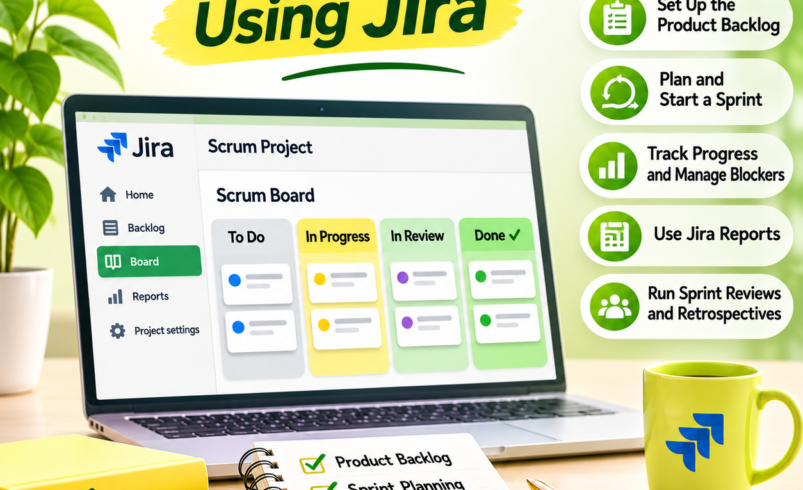
A Scrum board provides a visual representation of work selected for a Sprint. It helps the team understand which tasks are waiting, being worked on or completed.
A typical board may include columns such as:
- To Do
- In Progress
- In Review
- Done
Team members move issues across these columns as work progresses. The board gives everyone a shared view of the Sprint’s work.
You can configure columns and map workflow statuses according to your team’s process. Keep the board simple enough for everyone to understand without adding unnecessary stages.
Plan and Start a Sprint
Sprint Planning is where the Scrum Team discusses why the Sprint is valuable, what can be completed and how the selected work will be done.
In Jira, open the backlog and move suitable items into a new Sprint. The team should consider its capacity, previous experience and the complexity of the work before deciding what to include.
For example, a team may select five Product Backlog items for a two-week Sprint and establish a Sprint Goal such as “Enable customers to create and manage their accounts.”
Before starting the Sprint:
- Review the selected backlog items.
- Confirm that the Sprint Goal is clear.
- Check dependencies and known risks.
- Ensure the team understands the work.
- Start the Sprint in Jira.
Avoid treating the number of selected tasks as the only measure of success. The Sprint Goal should guide the team’s decisions throughout the Sprint.
Track Daily Progress and Manage Blockers
Once the Sprint begins, Developers can update issue statuses as work progresses. The Daily Scrum provides an opportunity for Developers to inspect progress towards the Sprint Goal and adapt their plan.
A Scrum Master can use the Jira board to identify issues that have not moved, tasks waiting for review and work affected by dependencies.
For example, if several development tasks are waiting for code review, the team can discuss how to resolve the delay rather than allowing more work to accumulate.
Jira can support this process through issue comments, labels, filters and notifications. However, updating the board should support team discussions rather than replace them.
Use Jira Reports to Review Sprint Performance
Jira provides reports that help teams understand how work progressed during a Sprint.
Some useful reports include:
Burndown Chart: Shows the remaining work throughout a Sprint and helps the team understand whether progress is following the expected pattern.
Sprint Report: Summarises completed work, incomplete work and items added or removed during the Sprint.
Velocity Chart: Shows the amount of work completed across previous Sprints. Teams can use this information when discussing future capacity.
Cumulative Flow Diagram: Displays how work items move through different workflow stages and helps identify areas where work may be accumulating.
These reports provide useful information, but they should not be used to compare individual performance or pressure teams into unrealistic commitments.
Conduct Sprint Reviews and Retrospectives
At the end of a Sprint, the team uses the Sprint Review to inspect the outcome with stakeholders and discuss what to do next.
Jira issues and completed work can help the team demonstrate progress. Stakeholder feedback can then inform future Product Backlog decisions.
The Sprint Retrospective focuses on how the team worked during the Sprint. Members can discuss collaboration, workflow problems, recurring delays and possible improvements.
The team can record agreed improvement actions in Jira and review them during future Sprints.
Best Practices for Managing Scrum Projects in Jira
To keep project management organised, follow these practices:
- Write clear issue descriptions and acceptance criteria.
- Keep the Product Backlog ordered and regularly refined.
- Create a meaningful Sprint Goal before starting a Sprint.
- Keep workflow stages consistent with actual team activities.
- Review reports to identify patterns rather than judge individuals.
- Use automation for repetitive updates and notifications where appropriate.
- Remove outdated issues and review project settings regularly.
Conclusion
Jira provides useful features for managing Scrum projects, from Product Backlog organisation and Sprint planning to progress tracking and reporting. When configured properly, it helps teams maintain visibility and coordinate their work more effectively.
However, the tool alone does not make a project successful. Teams still need clear goals, regular communication, collaboration and a willingness to improve. Use Jira to support Scrum practices, not to replace the conversations and decisions that make the framework effective.