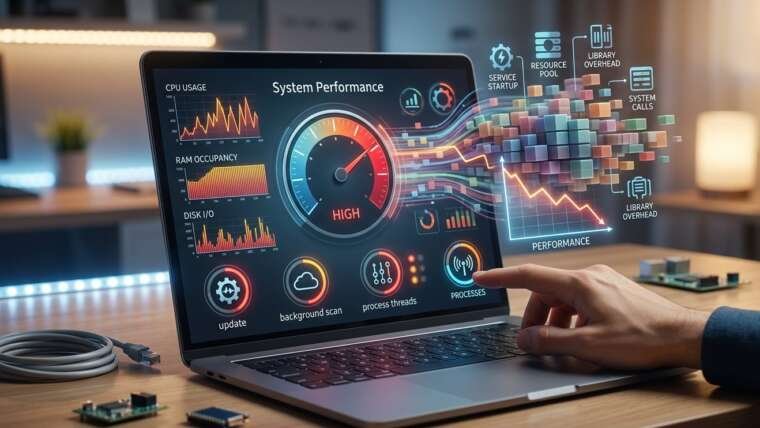


Installing new software should make your computer more useful, but sometimes it causes slow startup times, delayed responses, freezing, or unexpected crashes. These problems can occur because an application uses too many system resources, conflicts with existing programs, or introduces unwanted background processes. Understanding the cause can help you restore performance without replacing your computer. If troubleshooting becomes difficult, Computer Repair Albany, virus removal Albany, and data recovery Albany services can help address software problems and protect important files.
Table of Contents
- Common Reasons Your Computer Slows Down After Installation
- Check Your Computer’s System Resources
- Disable Unnecessary Startup Programs
- Check Available Storage Space
- Update Software and Device Drivers
- Scan for Malware and Unwanted Programs
- When to Seek Professional Computer Repair
- Frequently Asked Questions
- Get Professional Computer Support
1. Common Reasons Your Computer Slows Down After Installation
Several factors can explain why a computer becomes sluggish after installing a new application.
- High resource usage: Some applications consume significant amounts of RAM, processing power, or disk activity.
- Background processes: Programs may run continuously even when you are not actively using them.
- Software conflicts: Newly installed applications can conflict with existing programs or system components.
- Limited storage space: Large installations may leave insufficient free space for temporary files and system operations.
- Startup changes: Certain applications automatically launch when Windows starts, increasing boot time.
- Unwanted software: Installers from unreliable sources may include unnecessary programs or potentially harmful components.
Identifying which factor is responsible makes troubleshooting more effective.
2. Check Your Computer’s System Resources
Your computer’s Task Manager can help reveal which applications are consuming excessive resources.
On Windows, press Ctrl + Shift + Esc to open Task Manager. Select the Processes tab and review CPU, Memory, and Disk usage.
If the newly installed application consistently consumes unusually high resources, close it and check whether performance improves. You can also restart your computer to clear temporary system issues.
Avoid ending unfamiliar system processes, as doing so may cause Windows or other applications to malfunction.
3. Disable Unnecessary Startup Programs
Some applications automatically launch when you turn on your computer. Installing several programs with this behavior can noticeably increase startup time.
To manage startup applications:
- Open Task Manager.
- Select the Startup apps section.
- Review applications that launch automatically.
- Disable unnecessary programs that you recognize and do not need at startup.
- Restart your computer to check the difference.
Keep essential security software and important system utilities enabled.
4. Check Available Storage Space
Software installations can consume substantial storage, particularly when applications include large libraries, games, or additional components.
Open Windows Settings and navigate to System > Storage to review available space. Remove temporary files you no longer need and uninstall applications you do not use.
Before deleting personal files, make sure they are backed up. If your computer contains inaccessible files or a storage drive begins showing signs of failure, professional data recovery Albany services may help protect or retrieve valuable information.
5. Update Software and Device Drivers
Compatibility problems can develop when new software relies on outdated operating system components or drivers.
Install relevant Windows updates and check whether the application’s developer has released patches or updates. If the slowdown involves graphics-intensive software or connected hardware, check for compatible drivers through your computer manufacturer’s official website.
If the problem started immediately after installation, consider whether the application supports your operating system and meets its minimum hardware requirements.
6. Scan for Malware and Unwanted Programs
Not every performance problem is caused by legitimate software. Installers downloaded from unofficial websites may contain adware, unwanted applications, or malware.
Run a security scan using Windows Security or another reputable antivirus program. Review recently installed applications and remove suspicious software through the normal uninstall process when possible.
If suspicious pop-ups, browser redirects, or unexplained background activity continue, professional virus removal Albany services can help investigate and resolve persistent infections.
Download applications from official sources and review installation options carefully to avoid bundled software.
7. When to Seek Professional Computer Repair
If your computer remains slow after these steps, the problem may involve deeper software conflicts, insufficient memory, a failing storage drive, overheating, or another hardware issue.
Professional Computer Repair Albany technicians can perform diagnostic testing, identify resource bottlenecks, investigate persistent software errors, and recommend appropriate upgrades or repairs.
Getting the issue checked early may prevent continued performance problems and help you avoid unnecessary expenses.
Frequently Asked Questions
Why does my computer slow down immediately after installing software?
The application may use excessive CPU or memory resources, run background processes, conflict with existing programs, or install additional components.
Should I uninstall the software that caused the slowdown?
If performance improves when the application is closed and you do not need it, uninstalling it may help. First, confirm that it is not essential to your system.
Can new software damage my computer?
Most legitimate software will not physically damage a computer. However, incompatible applications, malicious installers, or excessive system demands can cause errors and performance issues.
Will adding more RAM make my computer faster?
Additional RAM can improve performance when memory is consistently running low. However, it will not necessarily resolve problems caused by malware, software conflicts, or a failing drive.
Get Your Computer Running Smoothly Again
A slow computer after installing new software does not automatically mean you need a new device. Checking system resources, managing startup applications, freeing storage, and scanning for malware can often improve performance. When problems persist, Computer Repair Albany, virus removal Albany, and data recovery Albany professionals can help diagnose the cause and protect your important information.